
Use the paid invoice to issue a full or partial refund, or to record a refund you have already paid outside TUIO.
Before you start
Open Invoices, find the invoice and open its details. The invoice must be eligible for a refund and no transaction can be in progress. Bank payments may have a waiting period. If Refund is unavailable, check the date or message shown beside the control. Contact support if you need help interpreting it.
Issue a full or partial refund
- Select Refund on the invoice.
- Review the Refund amount. Keep the available amount for a full refund, or enter a smaller amount for a partial refund. Do not exceed the amount available in the dialog.
- Choose Process refund using parent's selected payment method to send the refund through TUIO.
- Enter the Reason and review the amount and method before confirming.
- Check the invoice's transaction history for the result. Do not submit another refund while the first is in progress.
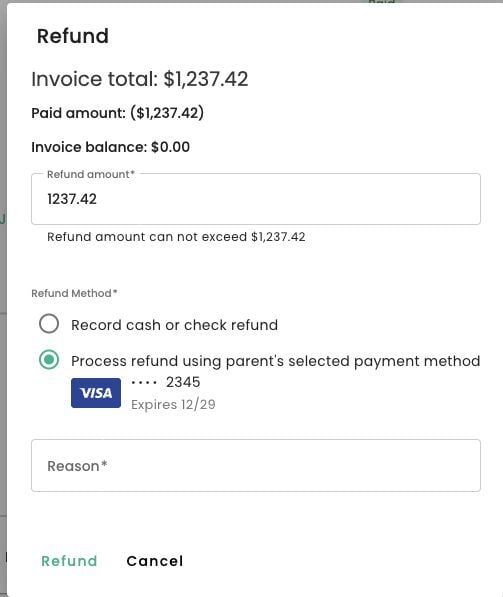
Review the refund amount and choose whether to process the refund through TUIO or record a refund paid outside TUIO.
Record a refund paid outside TUIO
Choose Record cash or check refund only when recording money refunded outside TUIO. Enter the relevant transaction dates and reason. This records the refund; it does not send money to the parent.
Timing and fees
Card and bank-account refunds can take 1-5 business days to reach the payer. Timing varies, so this is an estimate rather than a guaranteed completion date.
Review your school's refund policy and applicable processing fees before deciding the refund amount. Contact support@tuiopay.com if the refund option is missing, an error appears, or you need help with fees or the transaction result.
Video walkthrough
The video may show earlier screens. Follow the written steps above for the current controls.

Refund a specific payment transaction
For an invoice paid through more than one method, review its transaction history before refunding. A card or bank refund must be linked to a qualifying payment made with that same method. Choosing Refund on a transaction refunds the transaction you opened.
If TUIO reports that there is no qualifying payment to refund, read the explanation before proceeding. Record cash or check refund records money you refund outside TUIO; it does not send a card or bank refund.