

The video may show an earlier filter layout. Use the current steps below.
Further Reading
Archiving Programs
Archiving is the recommended method when a program is no longer active but you still want to retain its records (e.g. last year’s tuition).
Why archive?
Archiving helps keep your Programs tab organized without permanently deleting data.
Before archiving, make sure to:
- Review active enrollments in the program.
- Delete or archive enrollments as needed.
- Manage outstanding invoices. If any are unpaid, consider reminding parents or collecting payment first.
You can use the “View Active Enrollments” feature to check who is still enrolled. Once all enrollments and invoices are taken care of, you’re ready to archive the program.
Archiving a program does not delete paid invoices. Those are retained for your records.
Deleting Programs
You should only delete a program if there’s no information you need to keep, such as student data or invoices.
You can delete a program when:
- There are no paid invoices associated with it.
- All enrollments and invoices have been deleted.
Example: You created a program for a family who later withdrew without making any payments.
If a program contains paid invoices, it cannot be deleted. In those cases, archive it instead.
Restoring or Unarchiving a Program
Need to bring back a program that was archived or deleted?
- Go to the Programs tab.
- Open More filters, choose Status, then select Archived or Deleted as needed.
- Review the filtered results. Use the search field to narrow them by program name.
- Once you find the program:
- Click the three vertical dots beside it.
- Choose Restore (for deleted) or Unarchive (for archived).
- Click the three vertical dots beside it.
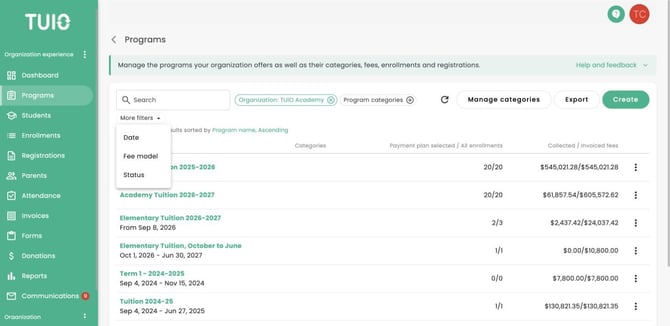
Open More filters to add Status.