
Overview
This article explains how schools using TUIO’s Professional plan can use the custom Bank Deposit Transactions export to record income and reconcile deposits.
The export includes all payments processed through TUIO — with amounts, fees, taxes, and deposits — allowing you to track what’s been collected and ensure your accounting records align with your processor payouts.
🧭 Note:
TUIO’s Professional plan is available to schools that pay an annual subscription fee and includes advanced reporting tools such as Custom Exports (with a pre-cleaned deposit summary tab) and automated QuickBooks compatibility.If you’re not sure which plan you’re on or would like to upgrade to access these features, contact support@tuiopay.com — our team can confirm your plan type and guide you through the options.
Before You Begin
-
Wait at least 7 days after your end date before exporting.
This ensures all deposits tied to that Completed Date range have been sent from the processor, giving your export the best chance to reconcile completely. -
Use the export to:
-
Record total income in your accounting software, and
-
Reconcile deposits sent by the payment processor.
-
Step 1 – Export your custom Bank Deposit Transactions
📨 If you don’t see the Custom Export button or this template:
It may not be set up for your school yet. Contact support@tuiopay.com and we’ll enable it for you.
-
Log into TUIO.
-
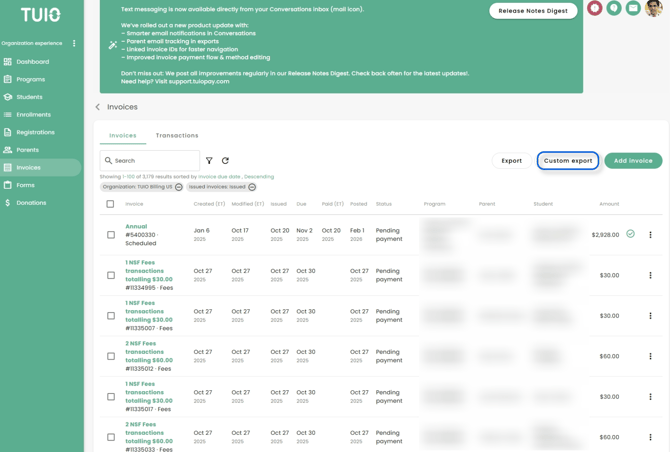
Go to Invoices → Custom Export.
-
Select Bank Deposit Transactions (or your school’s configured Custom Bank Deposit export).
💡 Note: The Bank Deposit Transactions export includes only online payments (credit card and bank account).
If you’d like a separate custom export to track Cash/Cheque or other offline transactions, contact support@tuiopay.com and our team can set one up for you.
This keeps your bank deposit export focused on processor-settled transactions. -
Use the Completed Date filter to select your desired date range.
⚠️ Important: Only export transactions if it has been at least 7 days since your end date — otherwise, not all deposits will be included and your export may not reconcile.
-
Click Export to download your Excel file.
Step 2 – Review Your Custom Export
Each row in the Transactions tab of the export represents a single transaction.
Your export also includes a Deposits tab, which lists each unique processor deposit already summarized for you.
Transactions tab columns
-
Transaction ID – Unique reference number for each transaction.
-
Status – Whether the transaction succeeded, failed, or is pending.
-
Type – The transaction category (e.g., Payment, Refund).
-
Parent – The payer’s name.
-
Program – The program or category the payment relates to (e.g., After-school care, Camp).
-
Student – The student associated with the transaction, if applicable.
-
Created (ET) – When the transaction was initiated.
-
Completed (ET) – When the transaction was finalized.
-
Amount – Transaction amount (positive for payments received, negative for refunds, reversals, transaction fees, and transaction fee taxes).
-
Transaction Fee – Processing fee charged by TUIO.
-
Transaction Fee Tax – Sales tax applied to the transaction fee (if applicable).
-
Transaction Deposited Date (ET) – Date the processor reported sending the funds to your bank.
-
Transaction Deposited Amount – The total amount the processor transferred to your bank for that deposit.
-
Transaction Deposit Reference – Identifier for the corresponding bank deposit.
💡 Tip:
For income reporting, sum all positive and negative Amounts.
For reconciliation, use the Deposits tab, which already lists each unique deposit sent by the processor.
Step 3 – Recording Income
Your custom Bank Deposit Transactions export can be used to record all income collected through TUIO that was processed via the payment processor.
-
In the Transactions tab, sum all positive and negative Amounts for your selected date range.
-
Positive values represent payments received.
-
Negative values represent refunds, reversals, transaction fees, and transaction fee taxes.
-
-
Record the resulting total as income in your accounting software — optionally categorized by Program, Student, Parent, or a general income category, depending on how your school tracks revenue.
If your school uses TUIO’s GL account feature with our Saasant or QuickBooks integration, this categorization can be done automatically — deposits and fees are posted directly to the correct GL accounts. If you don’t yet have this feature enabled and would like to, contact support@tuiopay.com and our team can set it up for you.
Because the Amount column already reflects all inflows and outflows, this approach ensures your recorded income accurately matches what was earned through TUIO.
💡 If your organization is eligible to reclaim sales tax on processing fees:
Record the Transaction Fee Tax amount from your export as a recoverable tax entry in your accounting system — do not re-add the transaction fees themselves as an expense.
This avoids double-counting while allowing you to track recoverable tax correctly.
Step 4 – Reconciling Deposits
Your export’s Deposits tab contains a pre-cleaned list of unique processor deposits, ready for reconciliation.
-
Open the Deposits tab.
-
Review the Deposit Date, Deposit Amount, and Deposit Reference columns.
-
The total of all Deposit Amounts should match your deposits from the processor for the selected date range, provided you waited at least 7 days before exporting.
⚠️ Note: The deposit date in TUIO reflects when the processor sent the funds, not necessarily when your bank posted them.
When Deposits Don’t Match Exactly
In rare cases, you may notice a deposit or debit in your bank account that doesn't reconcile with your export. This typically indicates a processor-level balance adjustment applied to bring your account back in balance.
To investigate yourself, open the new Processor activity report (Reports → Transactions → Processor activity) and generate the same period. The report shows every deposit, return, and balance adjustment the processor recorded — an Overdraft funding row, for example, means the processor debited your bank account to cover a negative balance, and appears as a withdrawal on your statement.
If a difference still can't be explained, contact 📧 support@tuiopay.com and our team can review your payout history and confirm the adjustment details.
Optional: Automate This in the Future
Your Professional plan includes access to QuickBooks integration, which automates bank deposit imports and maps revenue, fees, and taxes to your GL accounts.
📧 Contact support@tuiopay.com for setup assistance or to review your current configuration.
Need Help?
If you need assistance reviewing your Custom Export or reconciling deposits, contact
📧 support@tuiopay.com
Our team will guide you through the process.