
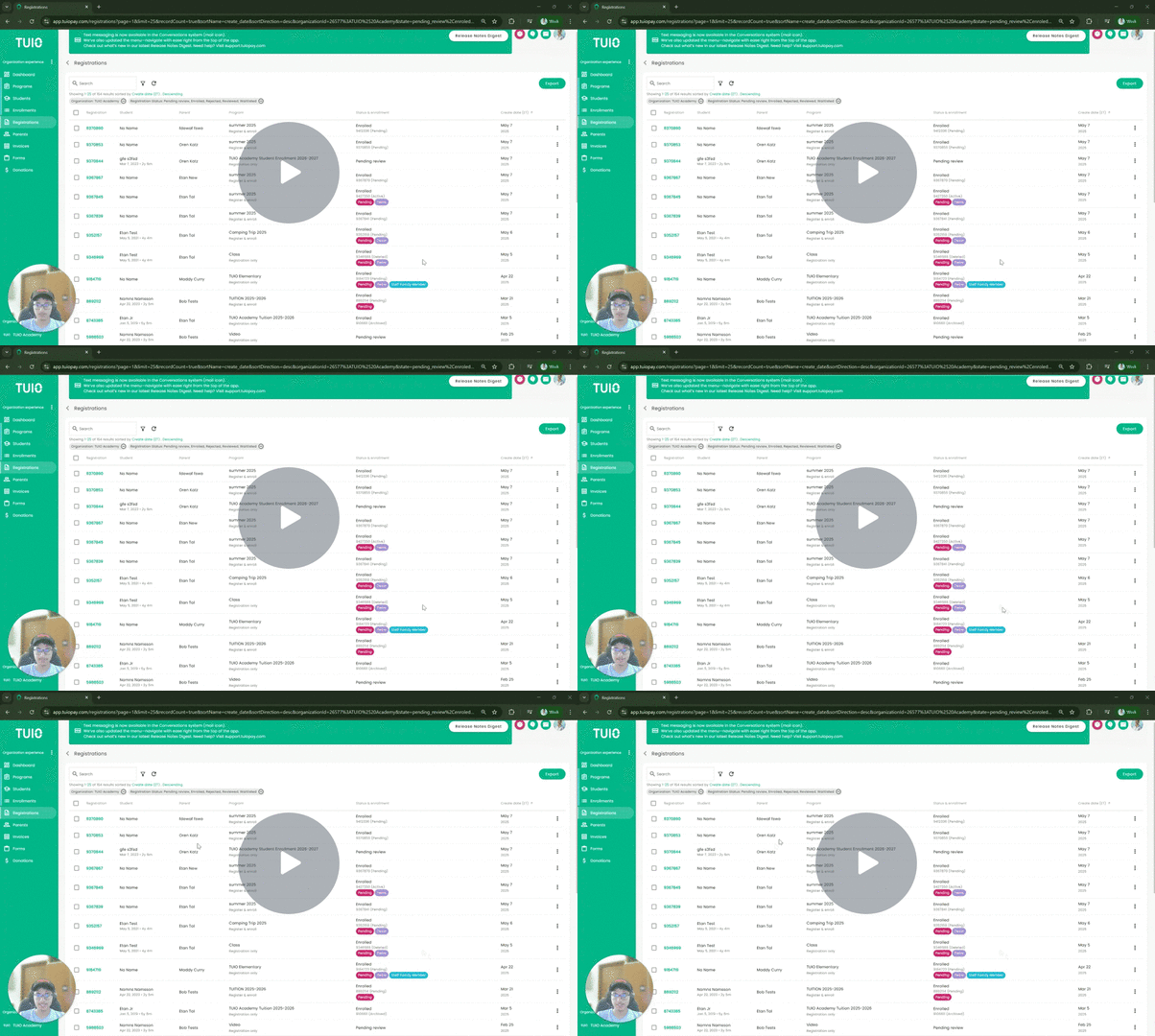
The video shows an earlier layout. Follow the current written instructions below.
Further Reading
Follow this guide to learn how to download and/or print your registration forms, whether one at a time or in bulk. Downloading them helps you keep digital records on your computer, while printing allows you to store them in the office for regulatory compliance and similar needs.
Download Registrations Individually
There are multiple ways of downloading an individual registration:
- Go to your 'Registrations' tab and click the 3 vertical dot icon on the right side of the screen for the registration(s) you want to access. Then click Download Registration PDF.
- Open the individual registration and use its Options menu to choose Download registration PDF.
- Registrations can be downloaded from the Parent and Student profile folders as well.
Download Registrations in Bulk
Go to your 'Registrations' tab and click the checkboxes for all the registrations you want to download (and/or print). A pop-up will appear at the bottom of your screen, indicating how many registrations you've selected.
Click Select All - you can do this after checking at least one box - if you want to download all registrations, otherwise click the ACTIONS button once you've clicked the checkboxes to select the registrations you want to download.
You can also bulk download registrations from the associated Student or Parent profiles.
Tip: Use the inline Program category, Program, and Registration status filters. Open More filters for Invoice status, Submitted date, Registration model, or Tag. Review the selected count before downloading in bulk.
After selecting the ACTIONS button, proceed by clicking the 'Download Registration PDFs' button.
Choose All in one PDF or Separate PDFs in the Download PDFs dialog. Choose the option you prefer by clicking the corresponding bubble, then download and/or print the PDF(s), and you're all set!
Page breaks in printed forms
A Page break added in the form editor starts the following fields on a new page in the downloaded PDF. It does not change the online form layout and is omitted from CSV exports. A page break at the end does not add a blank final page.
To change the form layout, see How to add custom content to forms. Preview the downloaded PDF before printing.