

The video may show an earlier filter layout. Follow the current steps below.
Further Reading
You can export the enrollments tab to download a spreadsheet (CSV file) with detailed information about the enrollments included by your filters. This report can be helpful for reconciling payments, checking custom fields, or communicating with parents.
Steps to Export Enrollments
- Open Enrollments.
- Use the controls above the list to choose the Organization, Program category or Program you need.
- Check Status. The default includes Active and Pending. Include Archived or Deleted if you need former enrollments.
- Open More filters for additional criteria, such as Parent notified or Payment method status. To find parents without a method usable for this organization, select the organization and use No usable payment method.
- Review the filtered enrollment list, then choose Export to download the CSV.
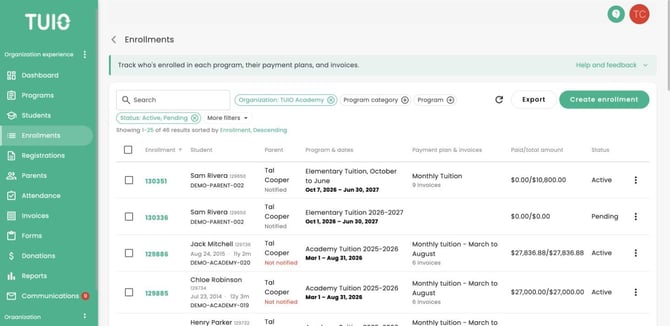
Review the scope and filters above the enrollment list before choosing Export.
Click here for more information on Enrollments filters.
What’s Included in the Export
The exported CSV file includes:
- Parent contact information (including emails)
- Enrollment details (programs, status, custom enrollment fields)
- Payment details: Paid, Total, and Outstanding amounts per enrollment
- Discount details: Discount Name and Amount columns
- Multi-program view: If students are enrolled in multiple programs, the export makes it easy to reconcile and ensure all enrollments and discounts are set up correctly.