
Use an invoice export to review billed charges, invoice details, related transactions and discounts in a spreadsheet.
Export your invoices
- Sign in to the school experience and open Invoices.
- Choose the organization and apply the filters for the records you need. Check the list before exporting. Use More filters for additional options.
- Choose Export from the list actions.
- For smaller results, the Excel file downloads in your browser. Larger exports are prepared in the background and sent to the email address linked to your TUIO account. Follow the message displayed in TUIO.
- Open the downloaded .xlsx file in Excel or another compatible spreadsheet application.
The export uses the current list filters. When exporting from an Invoices tab within a parent or enrollment record, that record also limits the export.
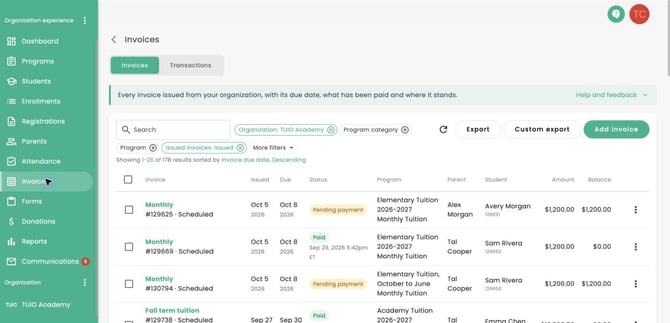
Example from TUIO Academy in demo. Set your filters, review the list, then choose Export.
What is in the workbook?
- Invoices: invoice and line item details, including charges, discounts, taxes and payment information.
- Transaction Details: payment and refund information associated with the exported invoice items.
- Discount Details: discount entries associated with invoice items.
An invoice with several items can appear on several rows. Transaction details can also repeat across invoice items. Use the invoice and transaction IDs to understand the grouping before adding totals. Do not add every repeated invoice-level or transaction-level amount as if each row were a separate invoice or payment.
Some fee and payout figures for unpaid invoices are estimates based on the assigned payment method. An invoice export is useful for reviewing billed data; it is not a statement of money received in your bank account.
Need a different file?
For payment activity, deposit reconciliation or an accounting import, use the appropriate transaction, processor or accounting export. See Exporting Transactions and Reconciling Deposits.
If you cannot see Export, ask your school administrator to check your Invoice & Transaction read access and whether the list is available for export in your current view.