
The video may show earlier editor controls. Use the current instructions below.
Edit a form
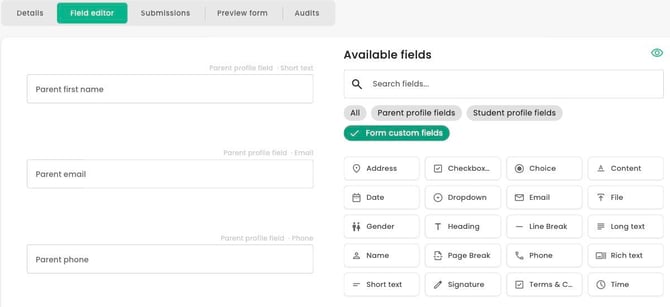
Open the form’s Field editor to add, reorder or remove fields. Use Save to keep your changes or Cancel to discard unsaved changes. Do not assume edits save automatically.
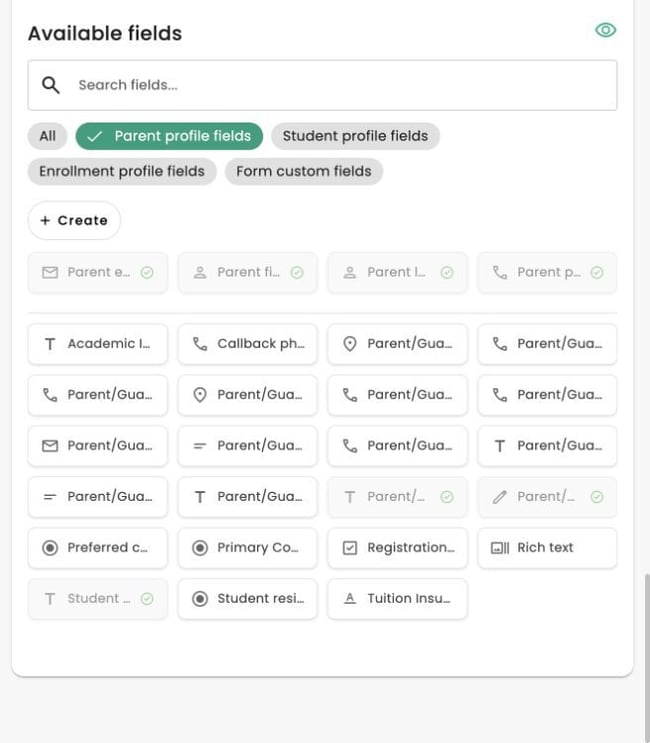
- Use Available fields to add a field. Parent profile fields and Student profile fields contain standard fields followed by custom fields below a divider. Enrollment profile fields contains custom fields only. Review the field's position, then drag it using the handle if needed. Enrollment profile fields are available on Registration forms, not ordinary Form-type forms.
- A custom field’s menu offers Edit and Duplicate directly.
- Editing a shared Student, Parent or Enrollment field changes that shared definition. Review other forms that use it before changing it. Form custom fields belong to the form and store answers with its submissions.
- Duplicate asks for a new label and creates a separate field you can customize without changing the original shared field.
- Removing a field from one form is different from deleting a shared field. Do not assume that removing it from the form deletes it from profiles or other forms.
After saving, check the available fields and preview the form. For conditional questions, see How to show form questions conditionally. Conditional rules apply to the specific form and can restrict reordering or removal of fields used by another rule.
Control PDF page breaks
Add a Page break where following content should start on a new page in the generated PDF. It does not add a visible question to the online form and is excluded from CSV report data. A page break at the end does not create an extra blank PDF page.
How to Duplicate a Form
To duplicate a form, click the 3 dots to the right of the form and then click Duplicate.
A dialog will appear when you can enter the name for the new duplicate, and choose the form type. Review the Internal name, External name and selected type, then choose Duplicate.
If you determine that you added a form as the wrong type you can Duplicate it to create it as the other type on the new duplicate. Note that Enrollment fields cannot be included on Form type forms, only Registration forms.
Choose a custom field type
When creating a Parent, Student or Enrollment field, the field types appear in one alphabetical grid. Content and Heading are included in that grid and display information rather than collecting a response.
Form-specific question types
In Available fields, select Form custom fields to choose a question that belongs only to this form.