
Review payments, processing fees, deposits, returns, and other activity recorded by your payment processor, and reconcile your bank deposits directly in TUIO.
The Processor activity report shows how funds moved into your merchant account and from your merchant account to your organization’s bank account.
It provides a processor-level account statement inside TUIO and links applicable activity back to the matching TUIO transactions. This means you can review processor activity without logging into the payment processor’s separate portal.
Use this report to:
- Review processor activity for a selected date range
- Understand the movement of funds through your merchant account
- Review payments, fees, deposits, returns, and chargebacks
- Match processor deposits to your bank statement
- See the TUIO transactions behind applicable ledger entries
- Export processor activity for accounting or recordkeeping
For help recording income and reconciling deposits with your transaction exports, refer to the appropriate reconciliation guide for your TUIO package.
Accessing the Processor Activity Report
From the main menu:
- Open Reports.
- Select the Transactions tab.
- Click Processor activity.
The Processor activity report is only available for organizations using a supported payment processor.
Your user role must also have permission to access processor activity.
If you do not see the report, contact support@tuiopay.com.
Before You Begin
Before generating the report, confirm that:
- Your payment processor supports the report
- Your user role has the required processor activity permission
- You know which merchant account you want to review, if your organization has more than one
Each active processing account is reported separately.
All report dates are shown in Eastern Time and follow the payment processor’s activity dates rather than the corresponding TUIO transaction dates.
Using the processor’s dates allows the report to align more closely with your bank statement.
Historical activity may be temporarily unavailable while it is being imported from the payment processor. More recent activity may become available first.
Step 1: Open the Processor Activity Report
- Open Reports from the left-hand menu.
- Select the Transactions tab.
- Click Processor activity.
Step 2: Generate the Report
- Select a From date.
- Select a To date.
- If your organization has more than one active processing account, select the applicable account under Merchant account.
- Click Generate.
The report only refreshes when you click Generate.
Changing the dates or merchant account does not update the results automatically.
Step 3: Review the Summary
The Summary section provides an overview of the processor activity recorded during the selected period.
Activity is grouped into credits and debits. Each line includes a transaction count and total amount.
The line items shown depend on the activity that occurred during the selected date range.
| Line item | What it means |
|---|---|
| Payments received | Payments collected through TUIO and credited to your merchant account |
| Processing fees | Transaction processing fees charged on the payments |
| Deposit to bank | Funds sent from your merchant account to your organization’s bank account |
| Returns | Payments that were returned or reversed |
| Chargebacks | Payments disputed through the cardholder’s bank or card issuer |
| Overdraft funding | Funds debited from your organization’s bank account to cover a negative merchant account balance |
Only line items with activity during the selected period appear in the Summary.
Step 4: Review the Transaction Ledger
The Transaction ledger provides a detailed account of the processor activity shown in the Summary.
The ledger is organized by the payment processor’s date and description.
Each row shows:
- The processor activity date
- A description of the activity
- The amount credited or debited
- The running merchant account balance
A total line appears at the bottom of the ledger.
Deposit descriptions may vary by region. For example, a deposit may appear as:
- ACH Sent
- EFT Sent
Open the related TUIO transactions
Ledger rows associated with TUIO transactions may include a transaction count and a link to the corresponding records.
This commonly includes:
- Payments received
- Returned Payments (Returns)
- Refunds
Click the linked row to open the Transactions page with the applicable transactions already filtered.
From there, you can review details such as:
- Parent name
- Student
- Transaction amount
- Invoice
- Payment status
- Payment method
Deposits and withdrawals are not linked because they represent the movement of funds rather than individual parent transactions.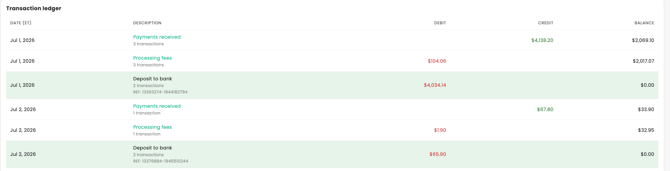
Step 5: Reconcile Your Bank Deposits
The Processor activity report can be used to match deposits recorded by the processor with deposits appearing in your organization’s bank account.
To reconcile a deposit:
- Generate the report for the date range covering the deposit.
- Locate the applicable Deposit to bank row in the Transaction ledger.

- Match the amount to the deposit shown on your bank statement.
- Compare the processor date with the bank posting date.
- Review the linked payment, return, and chargeback rows surrounding the deposit to understand the activity contributing to the merchant account balance.
Processor deposits may appear on your bank statement under a description matching the processor name or processor backend name.
The date shown in the report is the date the processor sent the funds. Your bank may post the deposit on a later date.
For this reason, you may need to review a slightly wider date range when matching the report to your bank statement.
Understanding the deposit amount
A bank deposit may not equal the total payments collected on a single day.
The final amount sent to the bank may be affected by processor activity such as:
- Payments received
- Processing fees
- Returns
- Chargebacks
- Other merchant account adjustments
The running balance in the Transaction ledger shows how these credits and debits resulted in the amount available for deposit.
Understanding overdraft funding
An Overdraft funding row means the merchant account had a negative balance and the payment processor debited your organization’s bank account to cover it.
This appears as a withdrawal rather than a deposit on your bank statement.
Negative merchant account balances may result from activity such as returns or chargebacks exceeding the available merchant account balance.
Step 6: Export the Ledger
Click Export to download the Transaction ledger as a CSV file.
The export:
- Follows the same order as the ledger shown on screen
- Includes the payment processor’s activity reference for each row
- Can be reviewed, shared, archived, or used for additional accounting work
If your organization has more than one merchant account, generate and export the report separately for each account.
Processor Activity Report vs. Collections Report
The Processor Activity Report and Collections Report answer different questions.
| Report | Best used for |
| Processor activity report | Reviewing the activity recorded by the processor and reconciling merchant account deposits with your bank statement |
| Collections report | Reviewing what was collected through TUIO, including gross collections, fees, parent fee offsets, and net payout by payment method or program |
Use the Collections report to understand collection performance and fee impact.
Use the Processor activity report to understand the movement of funds through the merchant account and reconcile deposits.
Quick Reference
| I want to… | Do this |
| Review what the processor recorded during a period | Go to Reports > Transactions > Processor activity, select the dates, and click Generate |
| Review another processing account | Select a different Merchant account and click Generate |
| Reconcile a bank deposit | Locate the Deposit to bank row and match its amount to your bank statement |
| See which parent payments are behind a ledger item | Click the linked payment, return, or chargeback row |
| Understand a merchant account balance | Review the credits, debits, and running balance in the Transaction ledger |
| Investigate a withdrawal from the bank account | Look for an Overdraft funding row |
| Keep a copy for accounting | Click Export to download the ledger as a CSV |
| Review collections by program or payment method | Use the Collections report |
Troubleshooting
I do not see the Processor activity report
The report is only available for organizations using a supported payment processor.
Your user role must also have permission to access processor activity.
Contact support@tuiopay.com if you believe the report should be available for your organization.
The report is empty
Confirm that:
- A From and To date have been selected
- The correct merchant account has been selected
- You clicked Generate after changing the filters
- Processor activity occurred during the selected period
If the organization was recently enabled for this report, historical information may still be importing.
Older activity is missing
Historical data may still be importing from the payment processor.
More recent periods may become available before older periods. Try again later or generate the report for a more recent date range.
The report did not update after I changed the dates
The report does not refresh automatically.
After changing the dates or merchant account, click Generate again.
The dates do not match the TUIO transaction dates
This is expected.
The Processor activity report uses the payment processor’s dates in Eastern Time, not the corresponding TUIO transaction dates.
The processor dates are used because they align more closely with the merchant account activity and your bank statement.
A deposit on my bank statement does not appear in the report
The processor date reflects when the funds were sent. Your bank may post the deposit one or more days later.
Expand the report date range and click Generate again.
Also confirm that you selected the correct merchant account.
The deposit amount does not match the payments collected that day
Deposits are based on the merchant account balance and may include activity from multiple days.
They may also be affected by:
- Processing fees
- Returns
- Chargebacks
- Other merchant account adjustments
Review the running balance and the activity surrounding the deposit row.
A deposit row is not clickable
This is expected.
Only rows associated with individual TUIO transactions, such as payments, returns, and chargebacks, link to the Transactions page.
Deposits and withdrawals represent fund transfers and are not tied directly to individual transactions.
There is a withdrawal from our bank account that we do not recognize
Look for an Overdraft funding row in the report.
This indicates that the processor debited the bank account to cover a negative merchant account balance.
If there is no corresponding row, contact support@tuiopay.com with the withdrawal date and amount.
The running balance is negative
A negative running balance means the debits recorded against the merchant account exceeded the funds available at that point in the ledger.
This may be caused by returns, chargebacks, fees, or other processor adjustments.
Review the surrounding activity to identify what created the negative balance.
I cannot identify the parent transactions behind a line item
Click the transaction count or linked ledger row, where available.
The Transactions page will open with the related TUIO transactions already filtered.
Deposits and withdrawals do not have transaction links.
Need Help?
If you need help interpreting the Processor activity report or reconciling a merchant account balance, contact support@tuiopay.com.
Include:
- The merchant account selected
- The report date range
- The applicable ledger date
- The amount or line item you are reviewing
- The related bank deposit or withdrawal amount, if applicable
This will help the support team review the processor activity more efficiently.