
Overview
This integration connects your TUIO payments with your accounting system through a special Bank Deposit export.
It includes your revenue and fee line items, mapped to the correct GL codes, so that once imported into QuickBooks or Xero, your deposits appear ready to reconcile.
The result:
-
Deposits automatically match your bank feed.
-
Revenue and expenses are recorded to the right GL accounts.
-
You spend less time reconciling and more time reviewing.
🟢 Available exclusively to schools on the Professional package.
Before You Begin
-
Confirm your package
-
This feature is available on the Professional plan.
-
If your school is on Starter, contact support@tuiopay.com for a quote to upgrade.
-
-
Book your setup session with TUIO Support
-
Before you can generate the export, our team will schedule a short setup meeting with you.
-
During this session, we’ll:
-
Configure your GL accounts in TUIO.
-
Enable the Bank Deposit custom export.
-
Walk you through the initial Saasant mapping (see Step 2 below).
-
-
-
Once setup is complete, the export becomes self-serve in your account — you can generate it anytime directly from TUIO.
Step 1 – Generate Your Export in TUIO
After setup, you can generate your own QuickBooks/Xero-compatible export anytime.
-
Log in to your TUIO admin account.
-
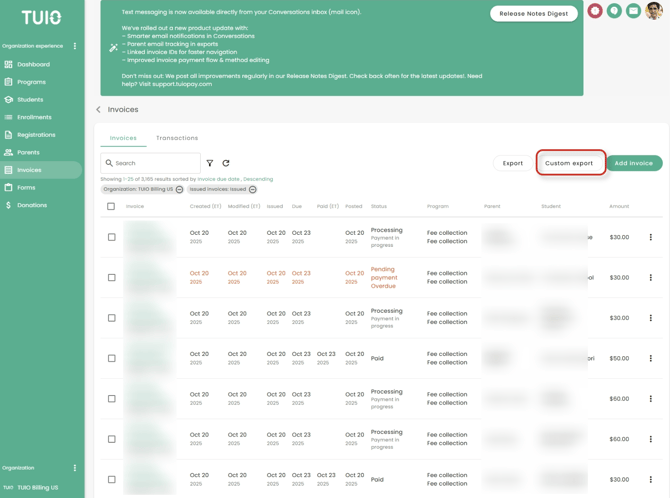
Go to the Invoices tab.
-
Once enabled, you’ll see a Custom Export button at the top right.
-
Select your 'Bank Deposit' previously set up.
-
Choose your date range and click Export.
🕒 Tip: For best results, wait 7 calendar days before running your export.
This ensures all transactions have fully settled and prevents temporary or reversed payments (such as bounced transactions) from affecting your reconciliation.
About Saasant
This integration uses Saasant Transactions, a third-party import tool for QuickBooks Online, QuickBooks Desktop, and Xero that enables the Bank Deposit Import feature.
Saasant offers affordable subscription plans and is billed separately from TUIO.
You can create your Saasant account using one of the links below:
-
Saasant for QuickBooks Online — most schools can use the Launch plan.
-
Saasant for QuickBooks Desktop — most schools can use the Starter plan.
💡 Tip: If you’re unsure which version of QuickBooks your school uses, check with your bookkeeper or accountant before selecting a plan.
TUIO is a Saasant affiliate — when you create your account through our partner link, it not only helps support continued improvements to this integration but also allows us to:
-
Track adoption and assist you more easily if any setup questions arise.
-
Leverage group usage data to negotiate potential preferred pricing or feature enhancements for TUIO clients in the future.
We recommend using our partner link when creating your Saasant account to ensure the best onboarding and support experience.
Step 2 – Import into Saasant
TUIO’s export works seamlessly with Saasant’s Bank Deposit Import tool.
-
Log in to your Saasant Transactions account.
-
Choose Bank Deposit as your import type.
-
Upload your TUIO export file (
.xlsx). -
During your initial setup, TUIO Support will help you manually map each field from the export to the correct column in Saasant — for example:
-
GL Accounts
-
Amounts
-
Deposit Date
-
-
Once your mapping is confirmed and saved in Saasant, you can reuse it for future imports with just one click.
-
Click Upload to complete your import.
Step 3 – Review in QuickBooks or Xero
Once imported, your deposits will appear in your accounting system.
-
In QuickBooks Online, imported deposits will automatically match your bank feed transactions in the Banking tab — that’s the “magic” of this integration.
-
You’ll see the deposits ready to confirm with one click.
-
Deposits also appear under Bank Deposits, but the real efficiency is in the bank feed match.
-
-
In Xero, deposits will similarly align with your bank transactions depending on your configuration.
When Deposits Don’t Match Exactly
In rare cases, you may notice a deposit or debit in your bank account that doesn’t reconcile with your export.
This typically indicates a processor-level balance adjustment applied to bring your account back in balance.
If you encounter a difference that can’t be explained by your export, contact
📧 support@tuiopay.com
and our team can review your payout history and confirm the adjustment details.
FAQ & Troubleshooting
Q: I don’t see the Bank Deposit export in TUIO.
Contact support@tuiopay.com to have it enabled and to schedule your setup session.
Q: My file failed to import into Saasant.
Make sure you’re using the Bank Deposit import type — not Journal Entry or Invoice import. If this persists, contact support@tuiopay.com.
Q: Some deposits didn’t match automatically in QuickBooks.
QuickBooks matches deposits to your bank feed based mainly on the deposit date and amount, not the deposit reference.
If a match doesn’t appear automatically (this can happen in rare cases), review your Banking tab in QuickBooks and locate the corresponding transaction manually.
Q: Can I edit my GL codes later?
Yes. You can update your GL accounts directly in TUIO, and these changes will apply to new invoices issued afterward.
For existing invoices, you can update GL codes individually or in bulk in TUIO.
For the Saasant import mapping, TUIO Support helps you set that up once. You can then reuse your saved mapping for future imports.
Need Help?
If you’d like to enable this integration or need help with your first setup, contact
📧 support@tuiopay.com
Our team will walk you through the setup and mapping — after that, it’s all self-serve.