
Overview
This article explains how schools using TUIO’s Professional plan can set up GL account mapping so that transactions from TUIO are automatically categorized in their accounting software.
This setup ensures your TUIO exports — or your automated integration with QuickBooks or Xero — post revenue, fees, and taxes to the correct GL accounts.
🧭 Note:
The Professional plan is available to schools that pay an annual subscription fee and includes advanced accounting tools such as GL account mapping and Custom Exports.If you don’t see the GL accounts option in your TUIO account or would like to upgrade, contact support@tuiopay.com and our team can enable it for you.
Step 1 – Access Your GL Account Settings
-
Log into your TUIO Admin account.
-
Click Settings in the left-hand menu.
-
Click the GL Accounts tab at the top of the Settings page.
-
Click the GL Accounts button on the right to open your mapping list.
💡 If you don’t see the GL Accounts tab or button:
Contact support@tuiopay.com — we can confirm whether the feature is active for your account.
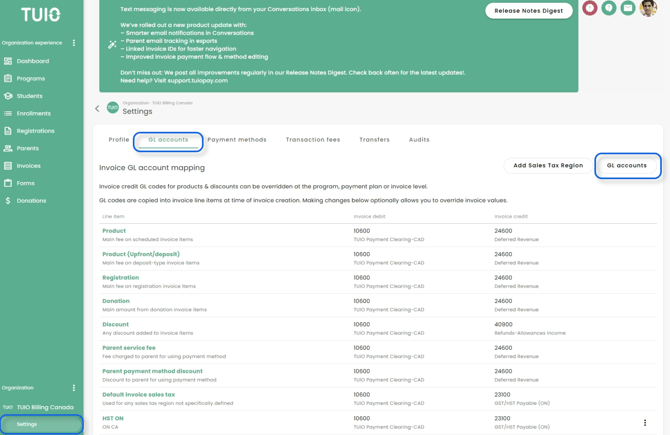
Step 2 – Create or Edit Your GL Accounts
On the next screen, click Create to add your GL accounts.
Enter your GL account codes exactly as they appear in your accounting software (QuickBooks, Xero, or other):
-
Match letter case (uppercase/lowercase)
-
Avoid extra spaces or punctuation
-
Click Save
⚠️ Important:
The codes you enter here must match your accounting system exactly.
Even small differences (extra space, case mismatch, etc.) can prevent accounts from mapping correctly during export or integration.
Step 3 – Choose Which GL Accounts to Add
When setting up your GL accounts, focus on the key categories relevant to your TUIO transactions.
🏦 Bank Account
Add a GL account for the bank account that receives deposits from your processor (e.g., Operating Bank Account or Tuition Deposit Account).
This ensures deposits from your TUIO export or integration post to the correct account in your accounting software.
If you manage multiple bank accounts (for example, separate accounts for tuition and auxiliary programs), create a GL account for each and coordinate with support@tuiopay.com so your exports or integrations are configured accordingly.
💰 Revenue and Fee Tracking
You can map your revenue to a single income GL account (for example, Tuition and Fees) or separate it by program if you prefer more detail.
Because TUIO already nets out transaction fees and related taxes in your reporting and exports, many schools simply record net revenue in their accounting system for cleaner financials.
If your school passes transaction fees on to parents, your TUIO data already includes those fees as part of the collected amount.
Recording the same fee as both income and expense would overstate your totals — but you don’t need to manage this manually.
The Custom Bank Deposit export and integration already apply these offsets automatically, ensuring your income accounts reflect net revenue.
If you still want to monitor processor costs independently, add a GL for Payment Processing Fees and post them there.
⏳ Deferred Revenue Accounts
If your school collects payments in advance (for example, annual tuition paid upfront), you can create deferred revenue accounts.
This lets you recognize or amortize that revenue over time within your accounting software.
💸 Sales Tax Accounts
If you charge or remit sales tax, add a GL account for each tax type you track (e.g., HST Payable, GST/HST Collected).
If you claim or track sales tax on transaction fees, you can create a specific GL for that — or include it within the fee or income account if you prefer to track net figures.
💡 Tip:
You don’t need to add accounts like Accounts Receivable here.
TUIO acts as your sub-ledger, tracking real-time receivables and payments automatically.If you still prefer to reflect A/R in your accounting software, you can export or review your Overdue Invoices report from TUIO each month and make manual adjustments.
Step 4 – Review and Update Over Time
Once your GL accounts are created and mapped, take a moment to review how they’re applied across your programs and invoices.
This ensures all new and existing transactions are accurately categorized before exporting or syncing to your accounting software.
🔍 Review Program-Level Defaults
After the TUIO team has helped you map your GL accounts, review each of your existing programs to confirm that the default accounts are appropriate.
Some programs may need to use a different GL account than the global defaults.
⚠️ Important:
Updating program defaults only affects invoices created after the change.
Existing invoices will keep the GL codes they had at the time of creation.
🧾 Update Existing Invoices (If Applicable)
Once your program defaults are correct, take some time to update GL accounts on invoices that have already been created — but only for those that will be uploaded to your accounting system.
There’s no need to update invoices belonging to accounting periods that have already been closed.
🎛 Use Filters to Make Bulk Updates
When updating invoices that share the same GL account, use filters strategically to isolate the right set:
-
Filter by Program, Invoice Type (Upfront/Deposit, Scheduled, or Registration), or a combination of both — depending on how your GLs are organized.
-
There’s no single approach: the goal is to group invoices that are meant to share the same GL account.
-
Always set Issued invoices = All to include both existing and future-scheduled invoices in your update.
After filtering the correct set, you can update them in bulk directly in TUIO or contact support@tuiopay.com for assistance reviewing and applying the updates safely.
🔄 Maintain Your Setup Over Time
As your setup evolves, you can:
-
Add new GLs when introducing new programs or account structures
-
Periodically review mappings to confirm accuracy
-
Override defaults at the program, payment plan, or invoice level when exceptions apply
🧭 Reminder:
GL codes are copied into invoices at the time of creation, so changes made here automatically apply only to future invoices.
Step 5 (Optional) – Automate Accounting with GL Mapping
If your school uses the GL account mapping feature together with our Saasant, QuickBooks, or Xero integration, transactions will automatically post to the correct GL accounts — including:
-
Net revenue (after processing fees and applicable taxes)
-
Deferred revenue (if applicable)
-
Sales tax (if tracked separately)
📧 Contact us:
If you’d like help setting up this automation or confirming your GL structure, contact support@tuiopay.com and our team will assist you.
Need Help?
If you need assistance setting up or updating your GL accounts, contact
📧 support@tuiopay.com
Our team will walk you through the setup or review your configuration.