Create a program for charges such as tuition, daycare, transportation, meals or a field trip. Payment plans define what families are charged and when.
Create the program
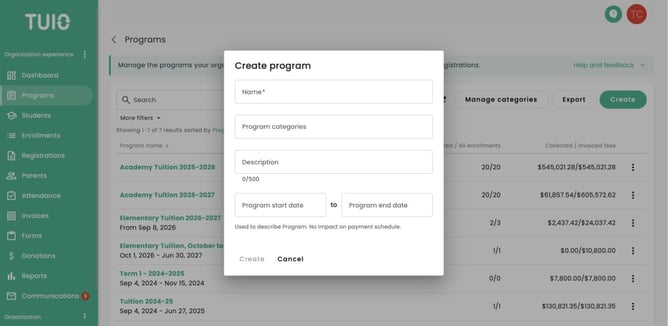
- Open Programs from the left menu and click Create.
- Enter the Name. Select any Program categories and add an optional description.
- Enter the program start and end dates if applicable. These dates describe the program; they do not set its payment schedule.
- Click Create.
Review Settings and payment plans
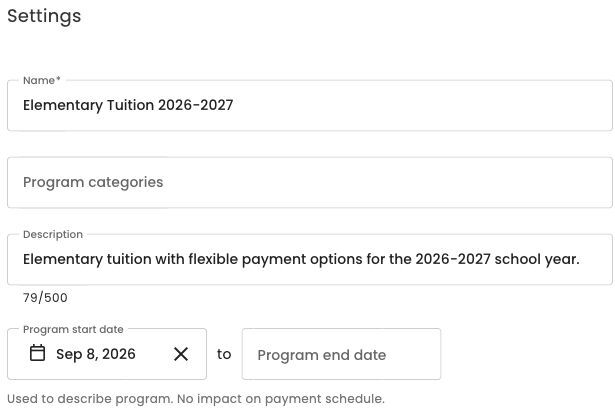
Open the program's Settings tab. This is where you review the program details, enrollment defaults, payment plans and summary tiles.
- Program categories: a program can belong to more than one category. See How to manage program categories.
- Enrollment parent fee options: when available for the program's fee model, choose the organization default, pass fees on, or do not pass on fees. The setting applies to enrollment invoices calculated from that point forward. Review program-level parent service fee overrides before changing it.
- Auto enroll students: when enabled, students whose parents have not selected a plan are enrolled in the default payment plan seven days after parents are notified. Leave it off when that automatic selection is not appropriate for an optional program.
- Default enrollment start date and Default enrollment end date: review how dates will be selected for new enrollments.
Click Save after changing Settings. Under Payment plans, click Create to set up a payment plan. Review its amounts and payment dates before enrolling students. The first payment plan in the list is the default; reorder the list if a different default is needed.
The summary tiles appear in Settings and show payment-plan selection, collected and invoiced amounts, overdue invoices, and registration information for the program.
Video walkthrough
This video shows an earlier layout. Follow the current Create and Settings steps above.

Create program example
Program Settings example
Summary tiles, enrollment defaults and payment plans appear in Settings.