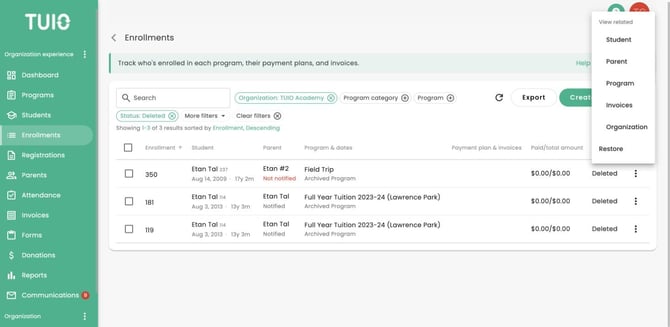

Use the written restoration steps below for the current Status filter and Restore action.
Further Reading
Removing a Student in TUIO
TUIO provides two options for removing students from your system: Archiving or Deleting. The appropriate action depends on whether the student has any associated invoices, and whether those invoices need to be retained.
Archiving Students
If a student has left or changed programs, archiving is the recommended option.
Archiving a student enrollment helps keep your Enrollments tab up to date and tidy, for both administrators and parents. However, before archiving, you must address any outstanding (unpaid) invoices.
Before Archiving:
- Review and delete any invoices that are safe to remove.
- If invoices should be paid, use the Remind parents feature or follow up directly.
- Once all open invoices are handled, proceed to archive.
How to Archive:
- Go to the Enrollments tab.
- Click the three-dot menu next to the student’s enrollment.
- Select Archive.
- Confirm deletion of any unpaid invoices.
Bulk Archiving:
You can archive multiple students at once:
- In the Enrollments tab, use the checkboxes to select the students you wish to archive.
- Click the Actions button that appears above the list.
- Select Archive.
- You’ll be prompted to delete any outstanding invoices before proceeding.
Note: Paid invoices are not deleted when archiving. They are retained for your records.
Deleting Enrollments
You should only delete a student's enrollment when there are no invoices associated with it.
Deletion removes the student's enrollment. If any invoices are marked as Paid, deletion is not possible, archive the student instead to retain those records.
Bulk Deletion:
To delete multiple students:
- Select students using the checkboxes in the Enrollments tab.
- Click Actions > Delete.
When to Delete:
A typical case is when a student enrolls but withdraws before making any payments on TUIO.
Restore an archived or deleted enrollment
You need Enrollment write permission.
- Open Enrollments.
- Set Status to Archived or Deleted to find the enrollment. The usual list defaults to Active and Pending.
- Open the enrollment's row menu, or open its Details page and choose Options.
- For an archived enrollment, choose Unarchive. For a deleted enrollment, choose Restore.
- Review the enrollment after it returns to the active list.
Enrollment status is read-only on the Details page. Use the available actions to change status; saving the page does not change an Active enrollment to Pending.
Restoring or unarchiving also creates any missing historical attendance records for class events covered by the enrollment's placement. This creates records for attendance tracking. It does not mark the student present at those events.
Find the Restore action
The Enrollments list is filtered to Deleted. Open the three-dot menu beside the enrollment and choose Restore. For an archived enrollment, use Unarchive instead.