

Video walkthrough
Further Reading
While your goal should be to have 100% of your parents pay through TUIO via bank account or credit card, there may be cases where your customers will bring you a physical payment to settle an invoice.
Since TUIO will provide the basis for your bookkeeping records, it is important that you reflect those offline payments onto the platform. Why keep track on paper or in Excel when you can do so on TUIO within a couple of clicks?
How to mark an invoice as 'paid' manually:
If TUIO says This invoice cannot be marked as paid yet, review the scheduled credit amount and date shown. A scheduled credit is covering the remaining balance, so TUIO prevents recording an external payment at this point. Check the invoice and credit details, or contact support if they do not match your records.
- In TUIO, click on the Invoices tab on the left hand side of your screen.
- Click on the invoice number (left-hand side column) you want to close. if you have a long list of invoices, we advise using the search bar at the top of the screen. You can search by parent or student name, for instance.
- On the invoice screen click Pay invoice.
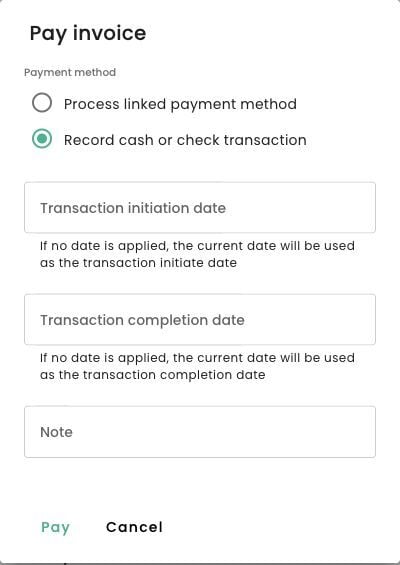
- On the next screen, you will be prompted to select the payment method (select 'Record cash or check transaction'). You can also add a note (e.g. "Cheque #532562" or "Paid with cash").
- Enter the Transaction initiation date and Transaction completion date for the recorded payment. If a date is left blank, TUIO uses the current date for that field. Add a note if helpful, then select Pay to record the payment.
If you return to the Invoices tab, you will see that the invoice now appears as 'Paid'. The parent associated with the account will also have received an email notification that their payment has been received, with a link to their payment receipt.
Note that you can also do this for several invoices at once by selecting them and then using the ACTIONS tool.
Correct a cash or TUIO credit transaction date
Staff with Invoice & Transaction write permission can edit the Initiated date and Completion date on a cash or TUIO credit transaction.
- Open the transaction details.
- Select Edit beside the date you need to correct.
- Choose the correct day and save.
- Review any affected invoice, reports, exports or receipt batches.
The day changes while the original time of day is retained. The initiation date cannot be after completion, completion cannot be before initiation, and neither date can be in the future.
Changing the completion date also changes the deposit date. For a cash payment that paid the invoice, it can change the invoice’s paid date.
These changes affect date-based reports, exports and tax receipt batches. Review previously exported accounting data before importing a corrected historical period again. Compare transaction IDs to avoid duplicate entries.
See Which report or export should I use? for help choosing the right file.