

The video may show an earlier layout. Use the written steps and current screenshot below for the Status filter.
Further Reading
Once you've targeted a form you can view the pending submissions to track any forms that haven't been submitted yet.
There are two ways to view pending submissions:
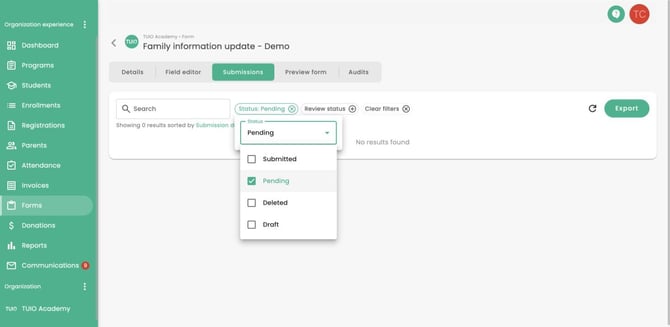
- From the Forms tab, click on the form name and then click Submissions. The default filter shows Submitted. Click the inline Status filter, select Pending and clear Submitted if you want only pending forms. Click outside the filter to apply your selection.
Use the Status filter to select which submissions to display. Pending is selected and Submitted is cleared. This example form has no pending responses yet.
You can click Export to export the pending submissions to a spreadsheet, making it easier to manage the data and collect the parent emails for follow ups, as needed.
If there are any pending submissions that shouldn't be listed you can delete them from the 3 dots on the right.
- On the Forms tab you can click the 3 dots to the right of the form name, then click 'View Pending Submissions' to see the list of pending submissions.
You can also remove pending submissions from this list, but if you prefer to do so in bulk, the first option is more effective.
If an expected parent is missing
Targeted forms go to the parent assigned to each targeted enrollment. Being linked to the student does not by itself make another parent a recipient. Check the enrollment’s parent and the form’s targeting settings.
A newly added eligible parent can receive the form on the next send. For the recipient rules and sending steps, see How to Target Forms to Parents.