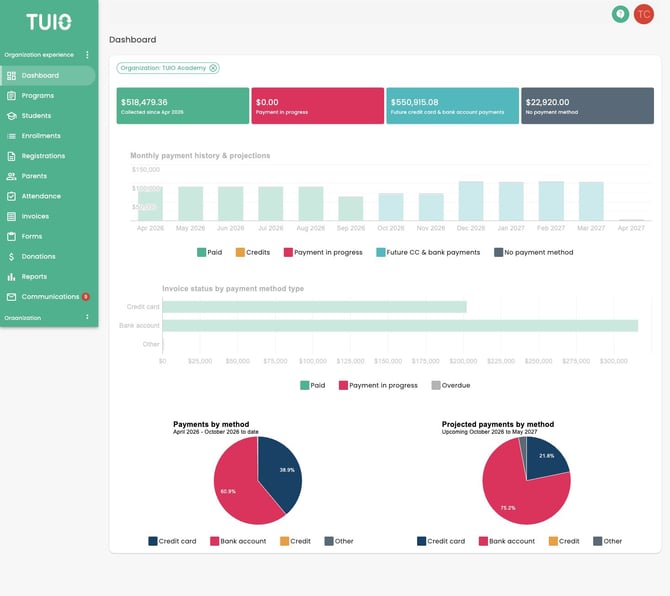
The Dashboard gives your school an overview of invoice payments and upcoming amounts. Open Dashboard in the left menu and check the organization and date ranges shown before comparing figures.
Summary tiles
- Collected: paid amounts for the period shown on the tile. Click the tile to review the underlying invoices.
- Payment in progress: payments or refunds still being processed. An in-progress amount is not a confirmed bank deposit. Check the transaction status before taking further payment action.
- Future credit card & bank account payments: upcoming invoice amounts associated with those payment methods. Click to review the invoices and their due dates.
- No payment method: invoice amounts without an attached payment method. Open the invoices and check their status before following up with parents.
Monthly payment history & projections
The monthly chart separates Paid, Credits, Payment in progress, Future CC & bank payments, and No payment method. Use the dates and legend shown on your Dashboard. Projections depend on the invoices already created in TUIO, so future programs without invoices will not supply those expected amounts.
Click a relevant chart segment to open its invoice details. Review the filters on the resulting invoice list before exporting or taking action.
Invoice status by payment method type
This chart groups amounts by Credit card, Bank account, and Other, with separate Paid, Payment in progress, and Overdue segments. Click a segment to investigate the matching invoices. Check the resulting due-date and status filters rather than assuming that overdue invoices start on a fixed school-year date.
Payments by method
The two pie charts show the payment-method mix for collected and projected payments. Each chart displays its own date range. Read those ranges when comparing the charts with a report or export.
Review or export the details
Use the Dashboard to find the invoices you need to investigate. For a spreadsheet, follow How to export invoice data to Excel. For collections, aging balances or bank reconciliation, use Which report or export should I use? to choose the appropriate report. Dashboard invoice totals are not a bank deposit statement.
Video walkthrough
This video shows an earlier layout. Use the current labels and steps above when they differ.
Current Dashboard example
The dashboard reflects your school’s amounts and selected date ranges.