
Video walkthrough
Further Reading
Custom Fields in TUIO are a powerful tool for collecting, managing, and displaying additional information in your TUIO organization. They serve three main purposes:
- Form Building – Use Custom Fields to collect data when forms are shared with parents or guardians.
- Manual Data Entry – Add or update information directly on Student, Parent, or Enrollment profiles.
- Student Reports – Include Custom Field data in templated student reports.
Types of Custom Fields
Custom Fields can be assigned to the following profiles:
1. Student Fields
- Appear on student profiles.
- Can be manually filled or automatically populated through a form.
- Ideal for any data you want to include in Student Reports.
2. Parent Fields
- Appear on parent profiles.
- Can be filled in manually or via form submissions.
- Note: Parent Fields cannot be used in Student Reports. If the data is needed in reports, use Student or Enrollment Fields instead.
3. Enrollment Fields
- Used to store information specific to a student's enrollment in a program.
- Found in the Enrollments tab on each enrollment entry.
- Can be filled in manually or through forms.
- Included in Enrollment exports, which are useful for reporting on totals, payments, and outstanding balances per program.
How to Create a Custom Field
- Go to the Forms tab.
- Select where you want the Custom Field to live: Student, Parent, or Enrollment.
- You can also create fields directly from the Field Editor within a form.
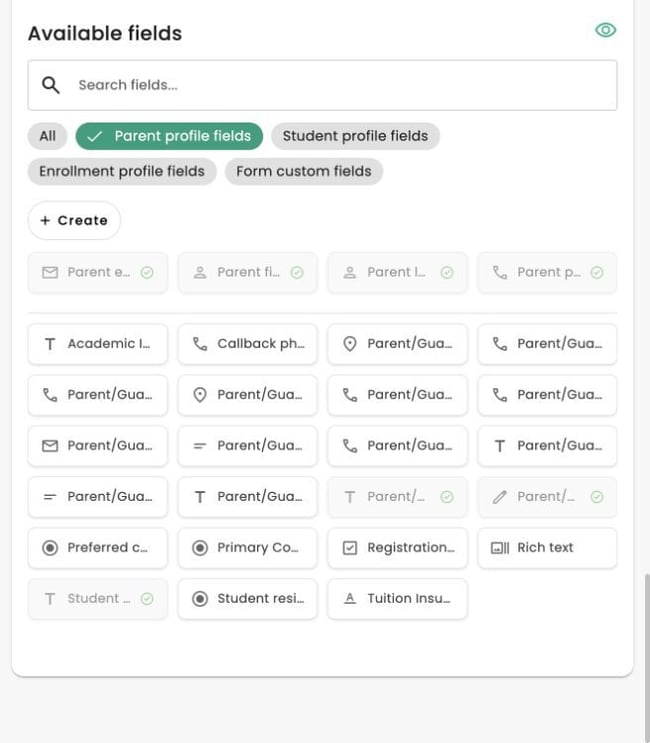
- In a form's Field editor, use Available fields and select the appropriate Parent profile fields, Student profile fields or Enrollment profile fields section. Parent and Student sections list standard fields above a divider and custom fields below it. Enrollment profile fields contains custom fields only. Use the custom-field Create control for the field type you need. Enrollment profile fields are available on Registration forms, not ordinary Form-type forms.
- In the Parent, Student or Enrollment field-type picker, choose from one alphabetical grid. Content and Heading appear in that grid with the other types.
- Customize the field:
- Heading and Content are display-only field types.
- Question types such as text and multiple choice collect user responses.
Once created, fields can be:
- Added to a form and completed by parents.
- Manually updated within the associated profile.
Questions that belong only to one form
Use Student, Parent or Enrollment custom fields when an answer should be stored on that profile and reused. Use Form custom fields for questions that belong only to one form. Their answers are saved with each submission and are not copied to a parent, student or enrollment profile.
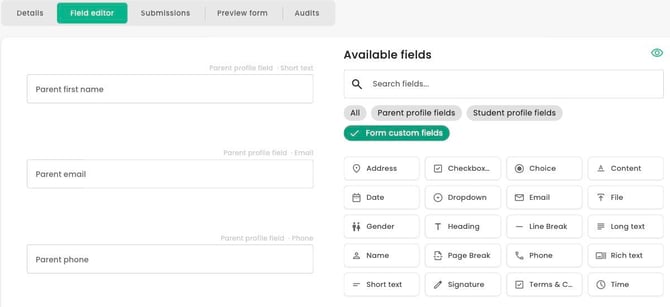
In the Field editor, filter Available fields to Form custom fields and choose a question type. The Parent and Student profile-field sections have separate Create controls for shared custom fields. Check the section before sharing the form.
Edit, duplicate and reuse fields
In a form’s Field editor, open a custom field’s menu and choose Edit or Duplicate directly. Duplicate asks for a new label. Editing a shared field changes that field wherever it is used; duplicate it when you need a separate definition.
Use Save to keep field-editor changes or Cancel to discard unsaved changes. The Available fields list refreshes after saving.
Conditional questions belong to a form
Conditional logic is configured for a custom question inside a specific form. It is not a global setting on the Student, Parent or Enrollment custom-field settings pages. See How to show form questions conditionally for the Beta feature’s supported rules and restrictions.
Form-specific question types
In Available fields, select Form custom fields to choose a question that belongs only to this form.